
 Docker is a popular platform for developing, shipping, and running applications inside containers. Installing Docker on a Debian 12 server is a straightforward process.
In this guide, I will walk you through the steps to install Docker on your Debian 12 server.
Prerequisites
Before you begin, make sure you have the following:
- A Debian 12 server with root access or a user with sudo privileges. Check out DartNode, RackNerd and Contabo VPS.
Step 1: Update System Packages
Before installing Docker, it’s a good practice to update your system’s package repository to ensure you have the latest versions of packages.
You can use an SSH client to login to your server.
For root users, use the following command:
apt update && apt -y upgrade && apt -y install sudo

For non-root users, use the following command:
sudo apt update && sudo apt upgrade
Step 2: Install Dependencies
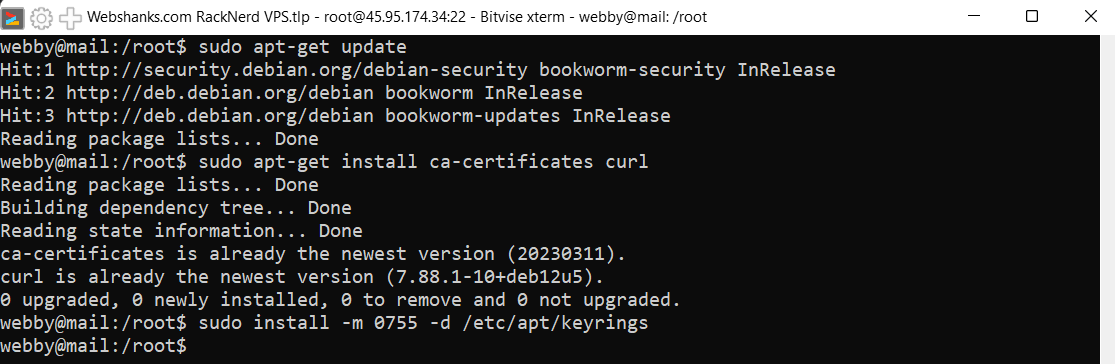
Docker requires some dependencies to be installed. You can do this by running the following command:
sudo apt-get update
sudo apt-get install ca-certificates curl
sudo install -m 0755 -d /etc/apt/keyrings
Step 3: Add Docker’s Official GPG Key
To ensure the integrity of the downloaded Docker packages, add Docker’s official GPG key:
sudo curl -fsSL https://download.docker.com/linux/debian/gpg -o /etc/apt/keyrings/docker.asc
sudo chmod a+r /etc/apt/keyrings/docker.asc

Step 4: Set Up Docker Repository
Add the Docker repository to your system’s software sources:
echo \
"deb [arch=$(dpkg --print-architecture) signed-by=/etc/apt/keyrings/docker.asc] https://download.docker.com/linux/debian \
$(. /etc/os-release && echo "$VERSION_CODENAME") stable" | \
sudo tee /etc/apt/sources.list.d/docker.list > /dev/null
sudo apt-get update

Step 5: Install Docker Engine
Once the repository is added, update the package index again and install the Docker Engine:
sudo apt-get install docker-ce docker-ce-cli containerd.io docker-buildx-plugin docker-compose-plugin

Step 6: Verify Docker Installation
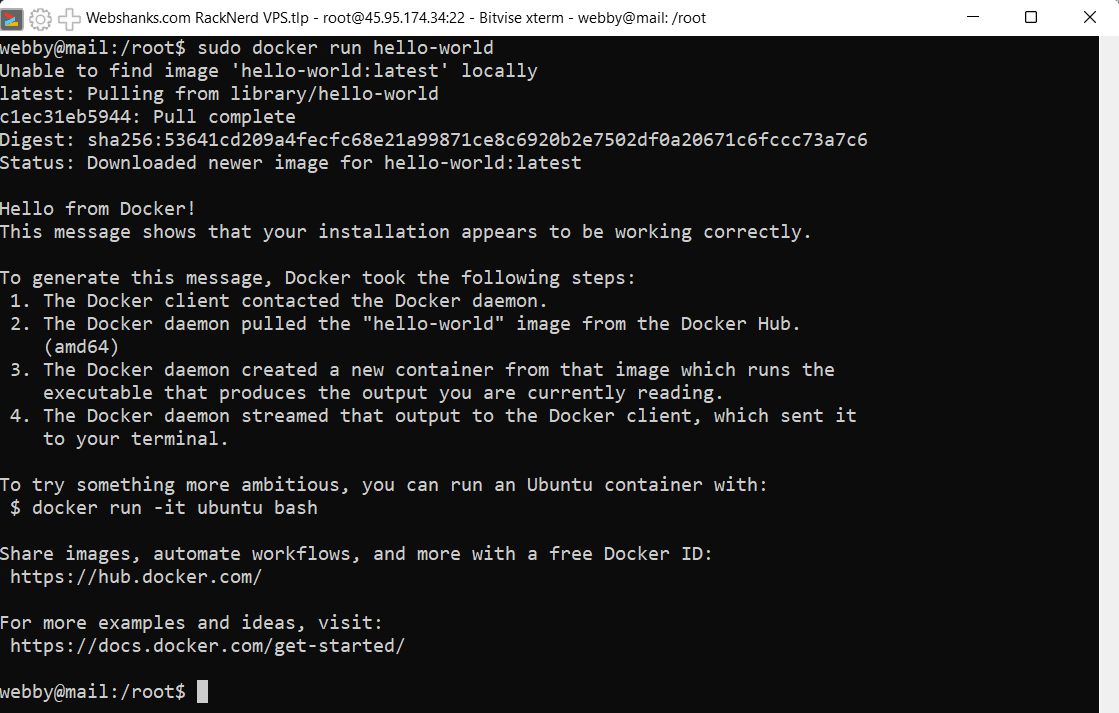
After installation, verify that Docker Engine is installed correctly by running the following command:
sudo docker run hello-world
If Docker is set up correctly, you should see a message indicating that your installation is working.
To check Docker version, run the following command:
sudo docker --version

Step 7: Start and Enable Docker Service
Start the Docker service and enable it to start on boot:
sudo systemctl start docker
sudo systemctl enable docker

Conclusion
Congratulations! You have successfully installed Docker on your Debian 12 Server using the Docker apt repository. You can now start using Docker to deploy and manage containers on your system.

After trying to install docker on debian 12 from three other sites/repositories, including two docker sites, yours is the one that worked. My silent question was “What am I doing wrong?” Thank you.
I can’t really answer that without knowing the error. Maybe you have a different command or something?
The error was probably me! Just saying your scripts seem to be easier to follow for someone that has to relearn this every time I do it. My Ras Pi server crashed after a year or two so I had to redo everything.
From what I can tell, this is exactly the same as the official page, but I could not get it going… I had all manner of errors, including dependency errors on a brand-new install. Then someone suggested I turn off IPv6 as one of the first 5 things I do when installing, then I ssh’d into it and copypasta’d your website commands, and it went through the first time. After six attempts prior. Not sure what is different, but it works! Apparently you are the debian-whisperer. Thanks a ton. Will you add one for Kubernetes too?
after doing everything successfully running docker compose up -d give this erro
yaml: line 22: could not find expected ‘:’
Check that line and add a colon
Great step-by-step guide! I followed your instructions to install Docker on my Debian 12 server, and everything worked perfectly. Thanks for including those troubleshooting tips; they really helped me out. Looking forward to more posts like this!
Great guide! The step-by-step instructions made the installation process really straightforward. I especially appreciated the tips on managing Docker services. Thanks for sharing!