
 Picture this: You’ve just purchased your first Virtual Private Server (VPS), excited about the possibilities it offers. But as you stare at the blank command line interface, reality sets in—managing a server through terminal commands alone can be overwhelming, especially if you’re not a seasoned system administrator.
You need file management, database administration, email configuration, and security monitoring, all while ensuring your websites run smoothly. This is where the best free control panel for VPS becomes your best friend.
If you’re just getting started with VPS hosting, you might also want to check out my guide on free cPanel alternatives for additional options.
Comparison: 14 Free Control Panels for VPS
| Control Panel | Ease of Use | Features | Performance | Community Support | Best For |
|---|---|---|---|---|---|
| HestiaCP | ⭐⭐⭐⭐⭐ | ⭐⭐⭐⭐ | ⭐⭐⭐⭐ | ⭐⭐⭐⭐ | Beginners, Small Sites |
| Webmin/Virtualmin | ⭐⭐⭐ | ⭐⭐⭐⭐⭐ | ⭐⭐⭐⭐⭐ | ⭐⭐⭐⭐⭐ | Advanced Users, Multi-domain |
| CloudPanel | ⭐⭐⭐⭐⭐ | ⭐⭐⭐⭐ | ⭐⭐⭐⭐⭐ | ⭐⭐⭐⭐⭐ | Modern Apps, Performance |
| CyberPanel | ⭐⭐⭐⭐ | ⭐⭐⭐⭐ | ⭐⭐⭐⭐ | ⭐⭐⭐⭐ | WordPress, Email-heavy |
| ISPConfig | ⭐⭐⭐⭐ | ⭐⭐⭐⭐⭐ | ⭐⭐⭐⭐⭐ | ⭐⭐⭐⭐ | Hosting Providers |
| Coolify | ⭐⭐⭐ | ⭐⭐⭐ | ⭐⭐⭐⭐⭐ | ⭐⭐⭐ | Modern Apps, Containers |
| Froxlor | ⭐⭐⭐⭐ | ⭐⭐⭐ | ⭐⭐⭐⭐ | ⭐⭐⭐ | Basic Hosting, Efficiency |
| aaPanel | ⭐⭐⭐⭐⭐ | ⭐⭐⭐⭐ | ⭐⭐⭐⭐ | ⭐⭐⭐ | Beginners, General Use |
| CWP | ⭐⭐⭐ | ⭐⭐⭐⭐ | ⭐⭐⭐ | ⭐⭐⭐⭐ | CentOS/RHEL Users |
| EasyPanel | ⭐⭐⭐⭐⭐ | ⭐⭐⭐ | ⭐⭐⭐⭐ | ⭐⭐ | Simple Hosting Needs |
| YunoHost | ⭐⭐⭐⭐ | ⭐⭐⭐ | ⭐⭐⭐ | ⭐⭐⭐ | Self-hosting, Privacy |
| KeyHelp | ⭐⭐⭐⭐ | ⭐⭐⭐⭐ | ⭐⭐⭐⭐ | ⭐⭐⭐ | Balanced Features |
| FastPanel | ⭐⭐⭐⭐ | ⭐⭐⭐ | ⭐⭐⭐⭐⭐ | ⭐⭐ | Speed-focused Hosting |
| 1Panel | ⭐⭐⭐⭐ | ⭐⭐⭐⭐ | ⭐⭐⭐⭐ | ⭐⭐⭐ | Container Deployments |
What is a VPS Control Panel?
A VPS control panel is a software application that provides a graphical interface to help you manage your virtual server without needing to use the command line exclusively.
Key Functions and Features
- Domain and DNS Management: Easily add domains, configure nameservers, and manage DNS records.
- Email Services: Create and manage email accounts, aliases, and spam filters.
- Database Management: GUI access to MySQL, PostgreSQL, and other databases.
- File Management: Upload, edit, and organize server files directly.
- SSL & Security: Install SSL certificates and manage firewalls with ease.
- Backup and Restore: Automate backups and restore files, databases, or entire sites.
Free vs. Paid Panels
Paid panels (like cPanel or Plesk) come with polished UI/UX, customer support, and extensive plugin ecosystems. However, many free VPS control panels offer nearly equivalent functionality, especially for developers and technical users.
Why Free Doesn’t Mean Inferior
Free doesn’t equate to low quality. Many free panels are open source, meaning developers around the world contribute to improving them. This community-driven innovation results in fast updates, security patches, and modern features.
Benefits of Using a Control Panel
- Saves time and effort
- Reduces the risk of error in CLI commands
- Helps beginners get started
- Speeds up deployment and scaling
- Centralizes server management
Top 14 Best Free Control Panels for VPS
HestiaCP
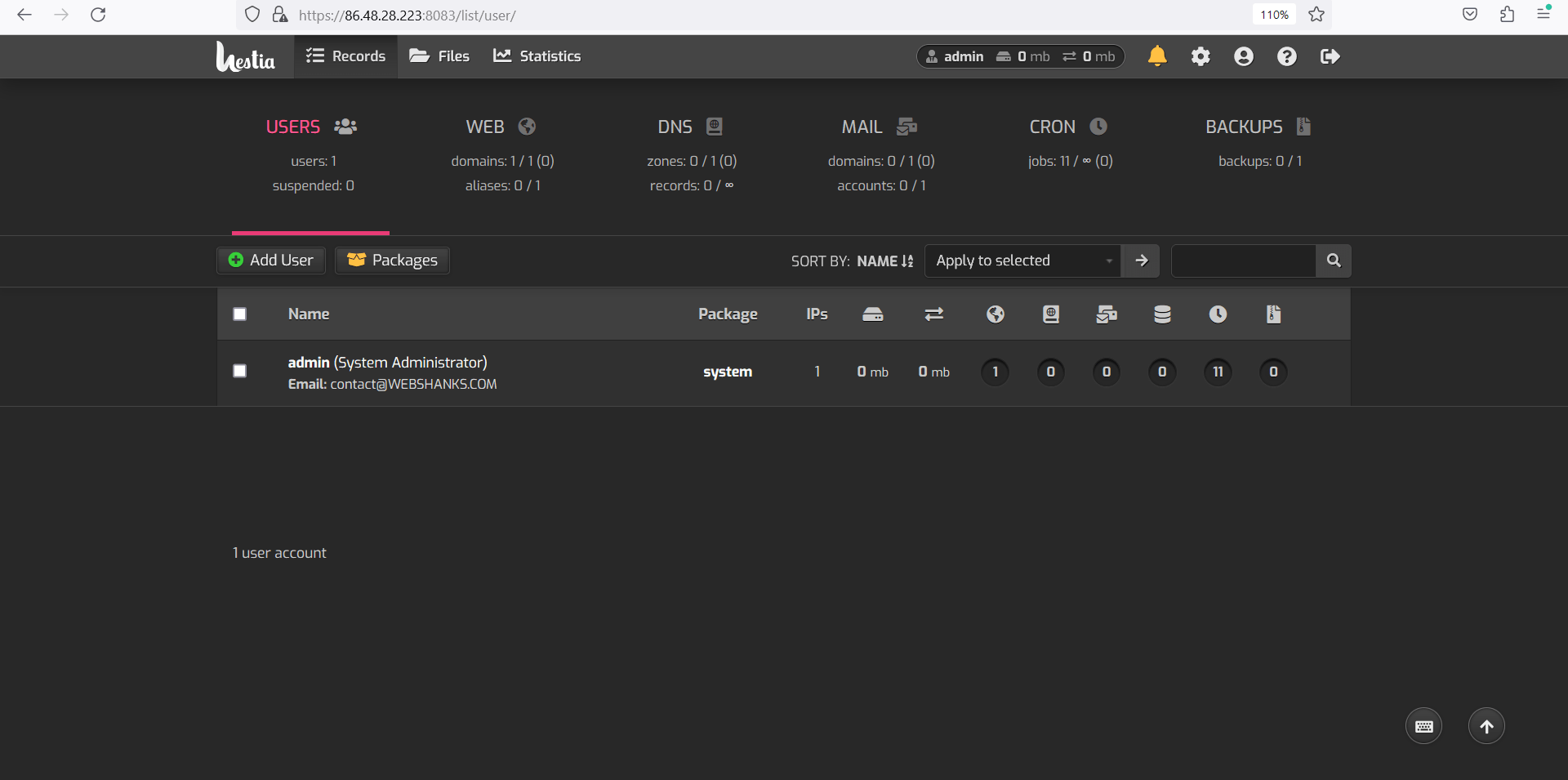
HestiaCP stands out as one of the most user-friendly and feature-rich free control panels available today. Born as a fork of VestaCP, HestiaCP has evolved into a comprehensive server management solution that balances simplicity with powerful functionality. The panel features a clean, modern interface that makes server administration accessible to users of all skill levels.
The control panel excels in its straightforward approach to common tasks. Creating websites, managing databases, and configuring email accounts can be accomplished with minimal clicks. HestiaCP supports multiple PHP versions, allowing you to run different applications with their preferred PHP configurations simultaneously. The built-in file manager provides a comprehensive interface for file operations, while the integrated backup system ensures your data remains safe with automated scheduling options.
For those looking to set up HestiaCP with a reliable VPS provider, my detailed setup guide for HestiaCP on Contabo VPS walks you through the entire process step by step.
Pros:
- Clean, intuitive interface ideal for beginners
- Excellent documentation and community support
- Built-in backup system with scheduling capabilities
- Support for multiple PHP versions
- Low resource consumption
- Regular security updates and bug fixes
- One-click SSL certificate installation
Cons:
- Limited customization options compared to some alternatives
- Fewer third-party plugins are available
- Some advanced features require command-line access
- Email management could be more comprehensive
Installation Difficulty: Easy – automated installation script available
Best Use Cases: Small to medium websites, development environments, beginners learning server management
System Requirements: Minimal – works well on servers with 512MB RAM or higher
User Experience Rating: 9/10 for ease of use, 8/10 for feature completeness
Webmin/Virtualmin

Webmin represents one of the oldest and most mature server administration tools in the open-source community. When combined with Virtualmin, it transforms into a powerful hosting control panel suitable for managing multiple websites and virtual servers. The combination provides both system-level administration through Webmin and hosting-specific features through Virtualmin.
The strength of Webmin/Virtualmin lies in its comprehensive approach to server management. Unlike many control panels that focus primarily on web hosting, this combination provides deep system administration capabilities. You can configure services, manage users and groups, monitor system resources, and perform advanced networking tasks all from the same interface.
Virtualmin adds the hosting-specific layer, enabling domain management, email configuration, database administration, and website deployment. The GPL version provides substantial functionality, while the Pro version offers additional features and support for those who need them. If you’re interested in implementing Virtualmin on a Debian system, check out my comprehensive Virtualmin installation guide for Debian 12.
Pros:
- Extremely comprehensive feature set
- Excellent for both system administration and hosting
- Strong community and extensive documentation
- Highly customizable and extensible
- Supports multiple operating systems
- Advanced user and permission management
- Robust backup and restore capabilities
Cons:
- Steeper learning curve for beginners
- Interface can feel dated compared to modern alternatives
- Higher resource consumption than lightweight alternatives
- Some features require GPL vs Pro version understanding
Installation Difficulty: Moderate – requires some Linux knowledge
Best Use Cases: Advanced users, system administrators, multi-domain hosting environments
System Requirements: 1GB RAM recommended, works on various Linux distributions
User Experience Rating: 7/10 for beginners, 9/10 for advanced users
CloudPanel
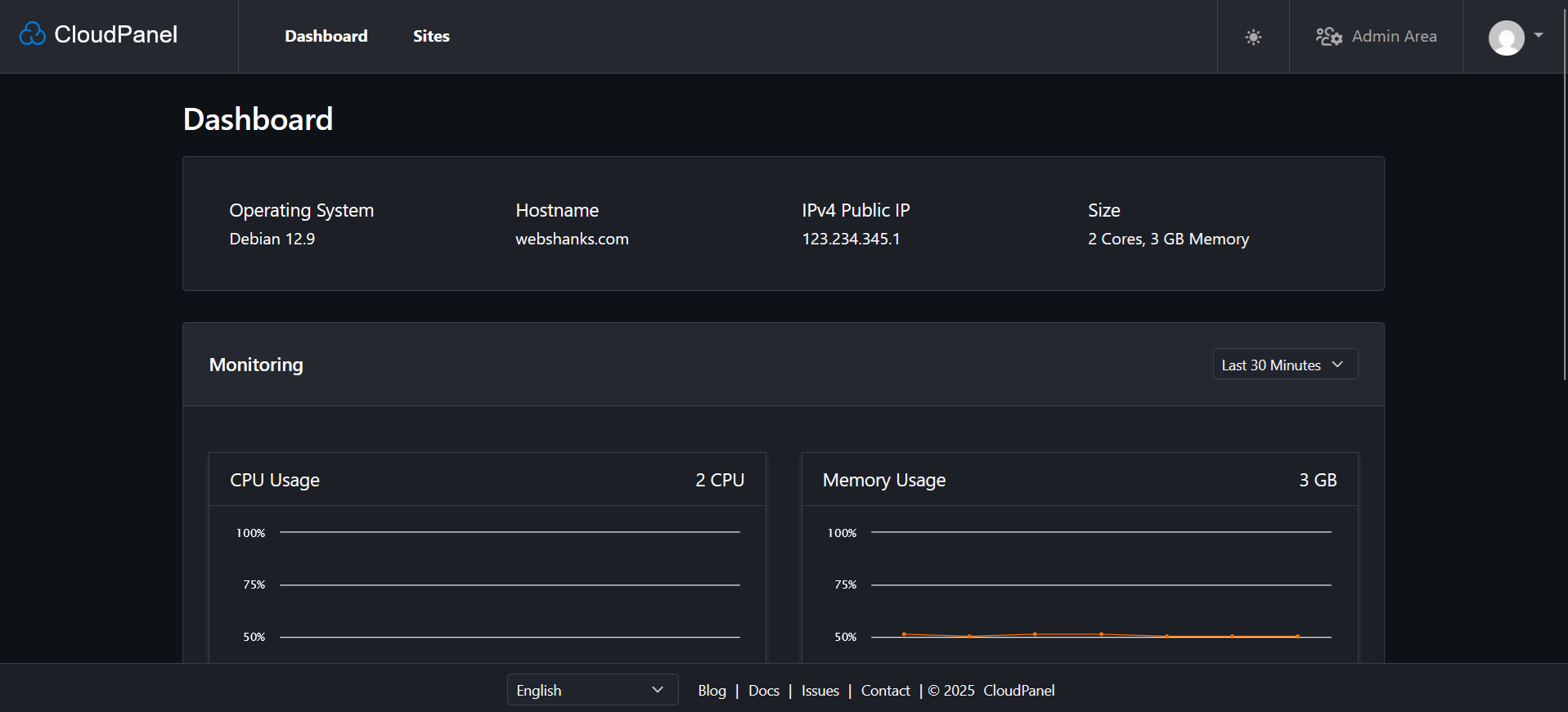
CloudPanel represents the new generation of control panels, designed specifically for modern cloud infrastructure and containerized applications. Built with performance and security as primary concerns, CloudPanel offers a streamlined approach to server management that emphasizes speed and efficiency.
The panel’s architecture is optimized for PHP applications, with particular strength in managing PHP-FPM pools and optimizing application performance. CloudPanel includes advanced caching mechanisms, database optimization tools, and comprehensive monitoring capabilities that help maintain optimal server performance.
One of CloudPanel’s standout features is its approach to security. The panel implements security best practices by default, including automatic security updates, fail2ban integration, and comprehensive firewall management. The interface is clean and modern, making complex server management tasks accessible through an intuitive workflow. For those interested in setting up CloudPanel, my CloudPanel installation guide on Contabo VPS provides detailed instructions.
Pros:
- Modern, responsive interface design
- Excellent performance and optimization features
- Strong security focus with built-in protections
- Efficient resource utilization
- Good documentation and support
- Free SSL certificates with automatic renewal
- Advanced PHP configuration options
Cons:
- Relatively new with smaller community
- Limited email management features
- Fewer third-party integrations available
- Some advanced features still in development
Installation Difficulty: Easy to moderate – well-documented process
Best Use Cases: Modern web applications, performance-critical environments, cloud deployments
System Requirements: 2GB RAM recommended, Ubuntu/Debian systems
User Experience Rating: 8/10 for modern interface, 7/10 for feature maturity
CyberPanel
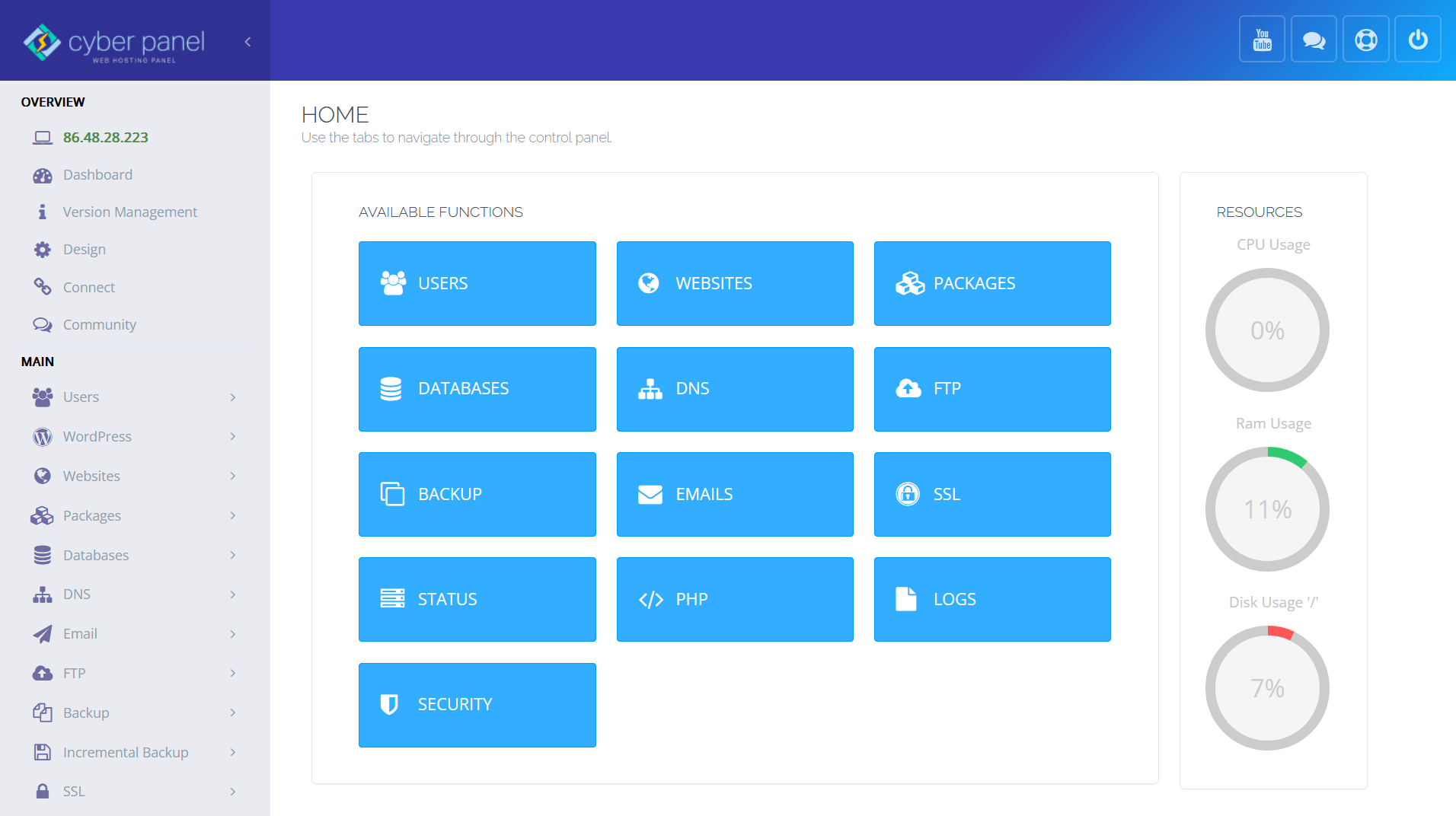
CyberPanel has gained significant popularity as a free alternative to commercial control panels, offering enterprise-level features without licensing costs. Built on OpenLiteSpeed web server, CyberPanel provides excellent performance characteristics while maintaining ease of use.
The panel’s integration with OpenLiteSpeed sets it apart from competitors. This combination delivers superior performance for WordPress sites and other web applications, often outperforming traditional Apache-based setups. CyberPanel includes advanced caching mechanisms, image optimization, and performance monitoring tools that help maintain optimal website speeds.
Email management in CyberPanel is particularly noteworthy, providing comprehensive email server functionality including spam protection, virus scanning, and advanced filtering options. The panel also includes robust backup solutions with support for multiple storage destinations including cloud providers. For comprehensive CyberPanel tutorials, you can explore my guides on installing CyberPanel on Contabo VPS and setting up email servers with CyberPanel.
Pros:
- Excellent performance with OpenLiteSpeed integration
- Comprehensive email server functionality
- Built-in backup solutions with cloud storage support
- Good security features and regular updates
- One-click WordPress installation and management
- Free SSL certificates with automatic renewal
- Active development and community support
Cons:
- OpenLiteSpeed learning curve for Apache users
- Higher resource requirements than some alternatives
- Some features require command-line knowledge
- Documentation could be more comprehensive
Installation Difficulty: Moderate – automated installer available
Best Use Cases: WordPress hosting, performance-focused environments, email-heavy applications
System Requirements: 2GB RAM minimum, CentOS/Ubuntu/Debian support
User Experience Rating: 8/10 for performance, 7/10 for ease of use
ISPConfig

ISPConfig stands as one of the most comprehensive open-source hosting control panels available, designed specifically for managing multiple websites, email accounts, and DNS zones. With support for multi-server setups and advanced user management, ISPConfig caters to hosting providers and advanced users who need enterprise-level functionality.
The panel’s strength lies in its scalability and multi-server capabilities. You can manage multiple servers from a single interface, distribute services across different machines, and implement high-availability configurations. ISPConfig supports clustering, load balancing, and failover mechanisms that make it suitable for professional hosting environments.
The interface, while functional, focuses on providing comprehensive functionality rather than modern aesthetics. Every aspect of server and hosting management is accessible through detailed configuration screens, giving administrators complete control over their infrastructure.
My ISPConfig installation guide provides step-by-step instructions for getting started, and you can also learn about setting up ISPConfig mail servers.
Pros:
- Comprehensive multi-server management capabilities
- Excellent for hosting providers and resellers
- Strong user and permission management system
- Supports high-availability configurations
- Extensive API for automation and integration
- Regular updates and active development
- Detailed logging and monitoring features
Cons:
- Complex setup process requiring technical expertise
- Interface feels dated compared to modern alternatives
- Steep learning curve for new users
- Higher resource requirements for full functionality
Installation Difficulty: Difficult – requires significant Linux knowledge
Best Use Cases: Hosting providers, multi-server environments, enterprise deployments
System Requirements: 2GB RAM minimum, supports major Linux distributions
User Experience Rating: 6/10 for beginners, 9/10 for hosting professionals
Coolify
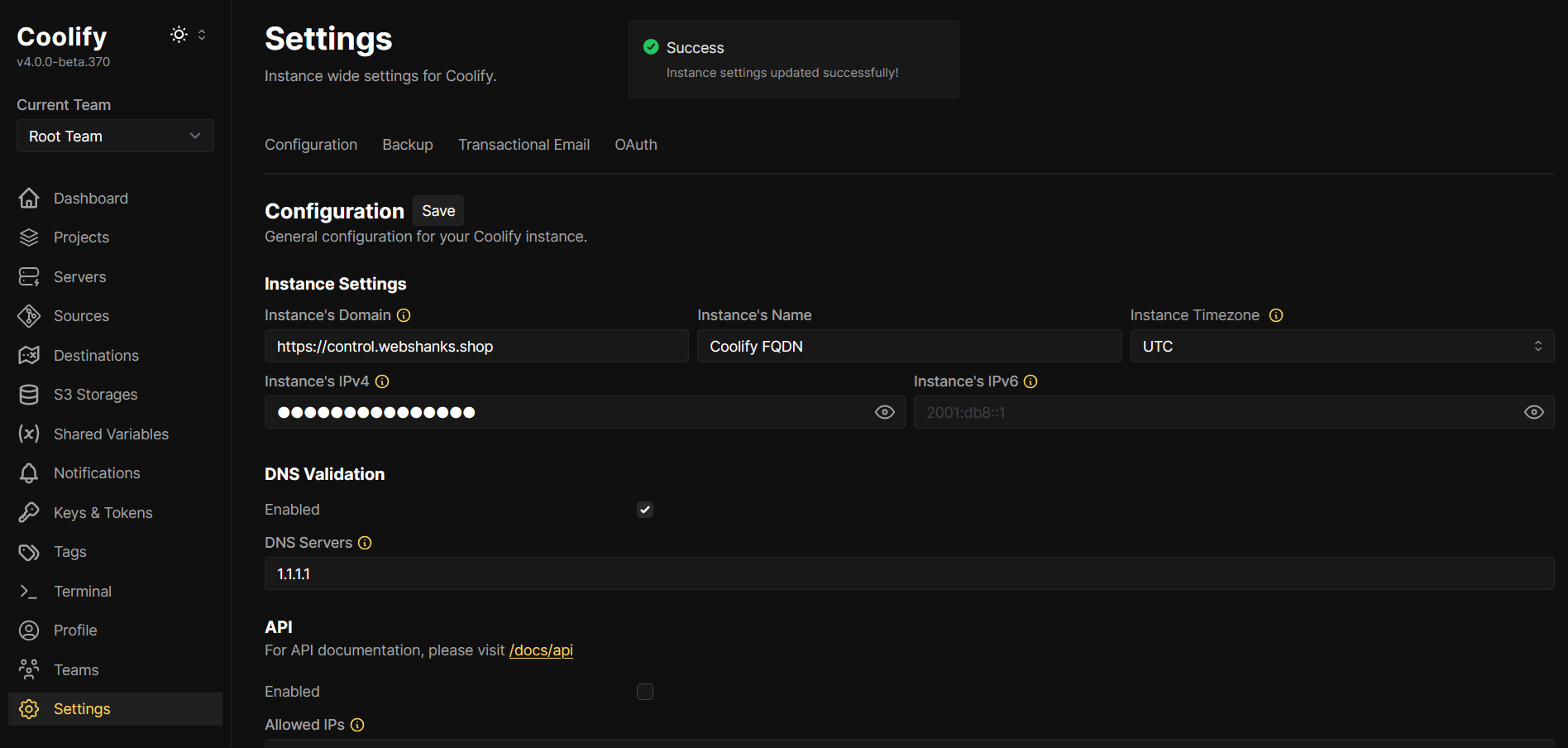
Coolify represents an innovative approach to application deployment and management, focusing on simplifying the process of hosting modern web applications and services. Rather than being a traditional hosting control panel, Coolify specializes in containerized application deployment and management.
The platform excels at deploying applications from Git repositories, supporting multiple programming languages and frameworks including Node.js, Python, PHP, and static sites. Coolify’s strength lies in its ability to handle the complexity of modern application deployment while providing a simple, intuitive interface.
One of Coolify’s most attractive features is its approach to database management and service deployment. You can easily deploy databases, caching services, and other infrastructure components alongside your applications, creating complete development and production environments with minimal configuration.
For those interested in modern application hosting, check out this guide on hosting multiple WordPress websites with Coolify demonstrates its capabilities.
Pros:
- Excellent for modern application deployment
- Strong Git integration and automated deployments
- Supports multiple programming languages and frameworks
- Built-in database and service management
- Container-based architecture for isolation and scalability
- Intuitive interface for complex deployments
- Active development with regular feature additions
Cons:
- Not suitable for traditional shared hosting scenarios
- Requires understanding of modern deployment concepts
- Limited traditional web hosting features
- Smaller community compared to established panels
Installation Difficulty: Moderate – requires Docker knowledge
Best Use Cases: Modern web applications, development environments, containerized deployments
System Requirements: Docker support required, 2GB RAM recommended
User Experience Rating: 9/10 for modern applications, 5/10 for traditional hosting
Froxlor
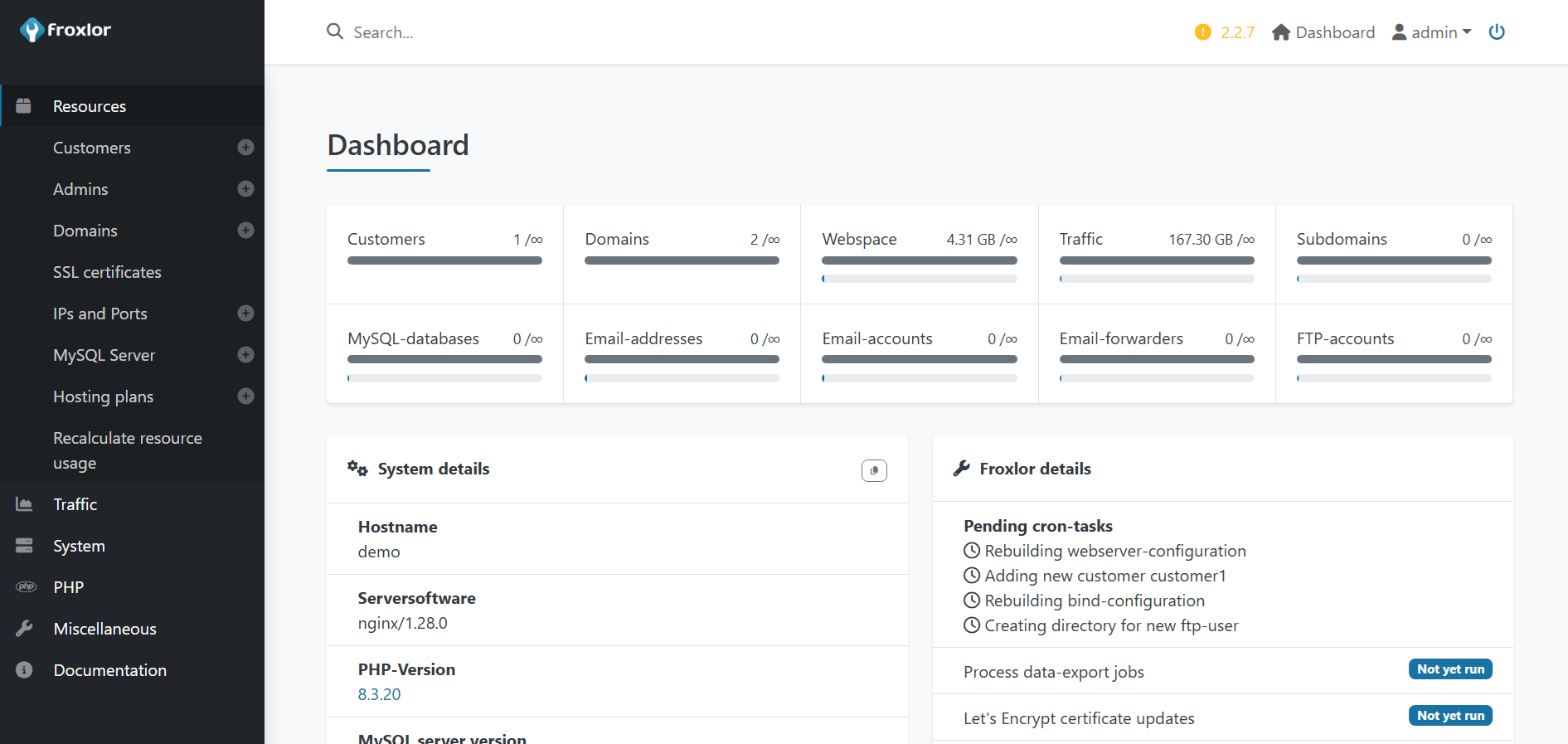
Froxlor positions itself as a lightweight, efficient control panel that focuses on essential hosting features without unnecessary complexity. Designed with performance and resource efficiency in mind, Froxlor provides a clean, functional interface for managing web hosting environments.
The panel’s philosophy centers on doing the basics exceptionally well rather than trying to include every possible feature. This approach results in a stable, fast control panel that consumes minimal server resources while providing reliable functionality for standard web hosting needs.
Froxlor’s strength lies in its straightforward approach to common hosting tasks. Domain management, email configuration, and database administration are handled through clean, intuitive interfaces that minimize the learning curve for new users.
Pros:
- Lightweight and resource-efficient
- Clean, uncluttered interface
- Stable and reliable performance
- Good documentation and community support
- Regular security updates
- Simple installation process
- Excellent for basic web hosting needs
Cons:
- Limited advanced features compared to comprehensive panels
- Fewer customization options
- Basic email management capabilities
- Limited third-party integrations
Installation Difficulty: Easy – straightforward installation process
Best Use Cases: Basic web hosting, resource-constrained environments, simple websites
System Requirements: Minimal – works well with 512MB RAM
User Experience Rating: 8/10 for simplicity, 6/10 for advanced features
aaPanel
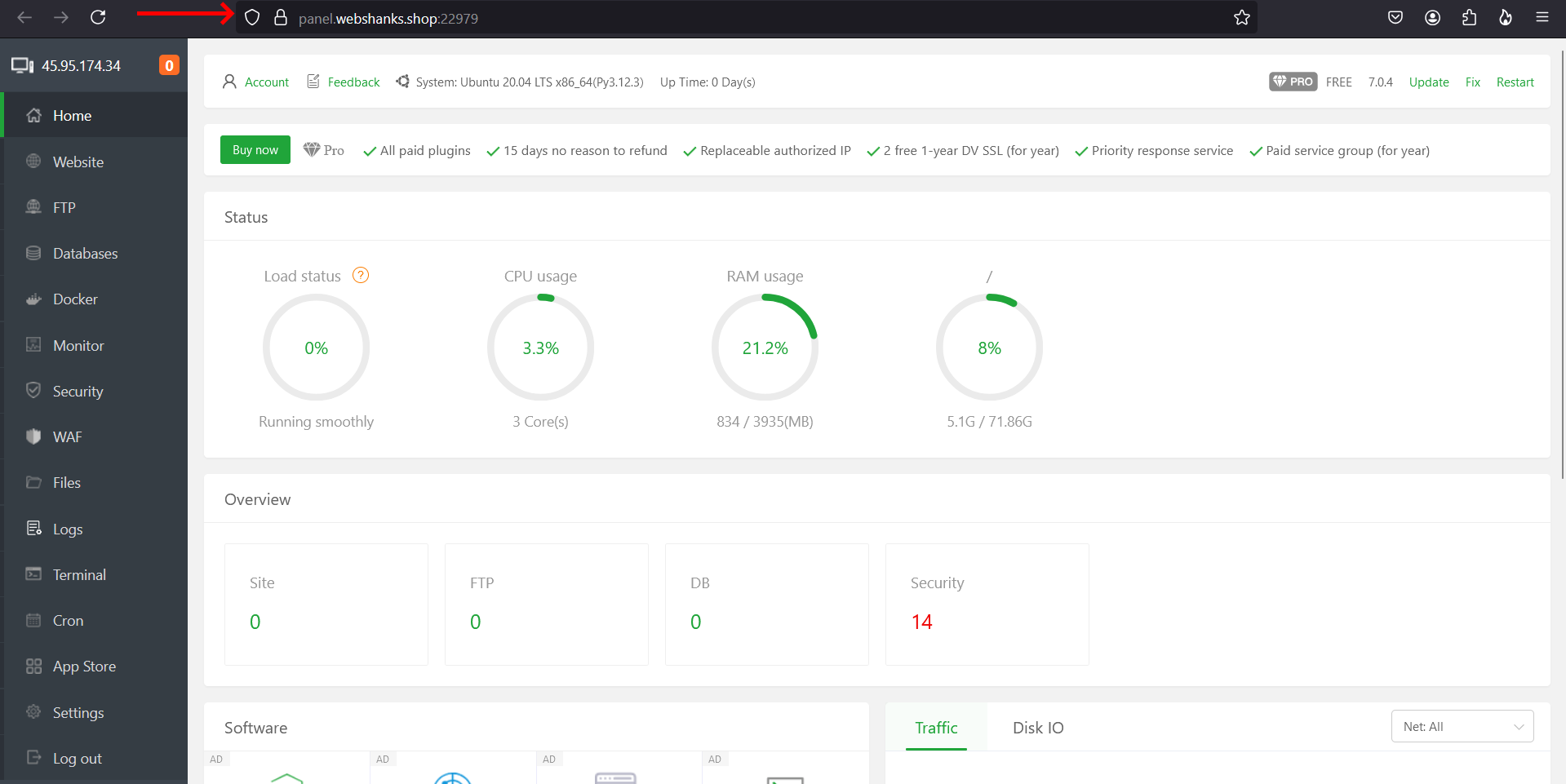
aaPanel brings a modern, user-friendly approach to server management with a focus on simplicity and functionality. Developed with both beginners and experienced users in mind, aaPanel provides comprehensive hosting features through an intuitive interface that doesn’t sacrifice power for usability.
The panel excels in its one-click installation and configuration capabilities. Setting up web servers, databases, and common applications can be accomplished with minimal technical knowledge, making it an excellent choice for users transitioning from shared hosting to VPS management.
aaPanel’s plugin system allows for extensive customization and feature expansion. The panel supports various plugins for backup management, security enhancement, and performance optimization, allowing users to tailor their server management experience to their specific needs.
My aaPanel installation guide for Contabo VPS covers the setup process, and you can also learn about creating WordPress websites in aaPanel.
Pros:
- Very user-friendly interface ideal for beginners
- One-click installation for common applications
- Comprehensive plugin system for extensibility
- Good performance monitoring and optimization tools
- Regular updates and active development
- Excellent documentation and tutorials
- Free SSL certificate management
Cons:
- Some advanced features require technical knowledge
- Limited customization of core functionality
- Email management could be more robust
- Fewer enterprise-level features
Installation Difficulty: Easy – automated installation script
Best Use Cases: Beginners, small to medium websites, development environments
System Requirements: 1GB RAM recommended, supports major Linux distributions
User Experience Rating: 9/10 for ease of use, 7/10 for advanced functionality
CentOS Web Panel (CWP)
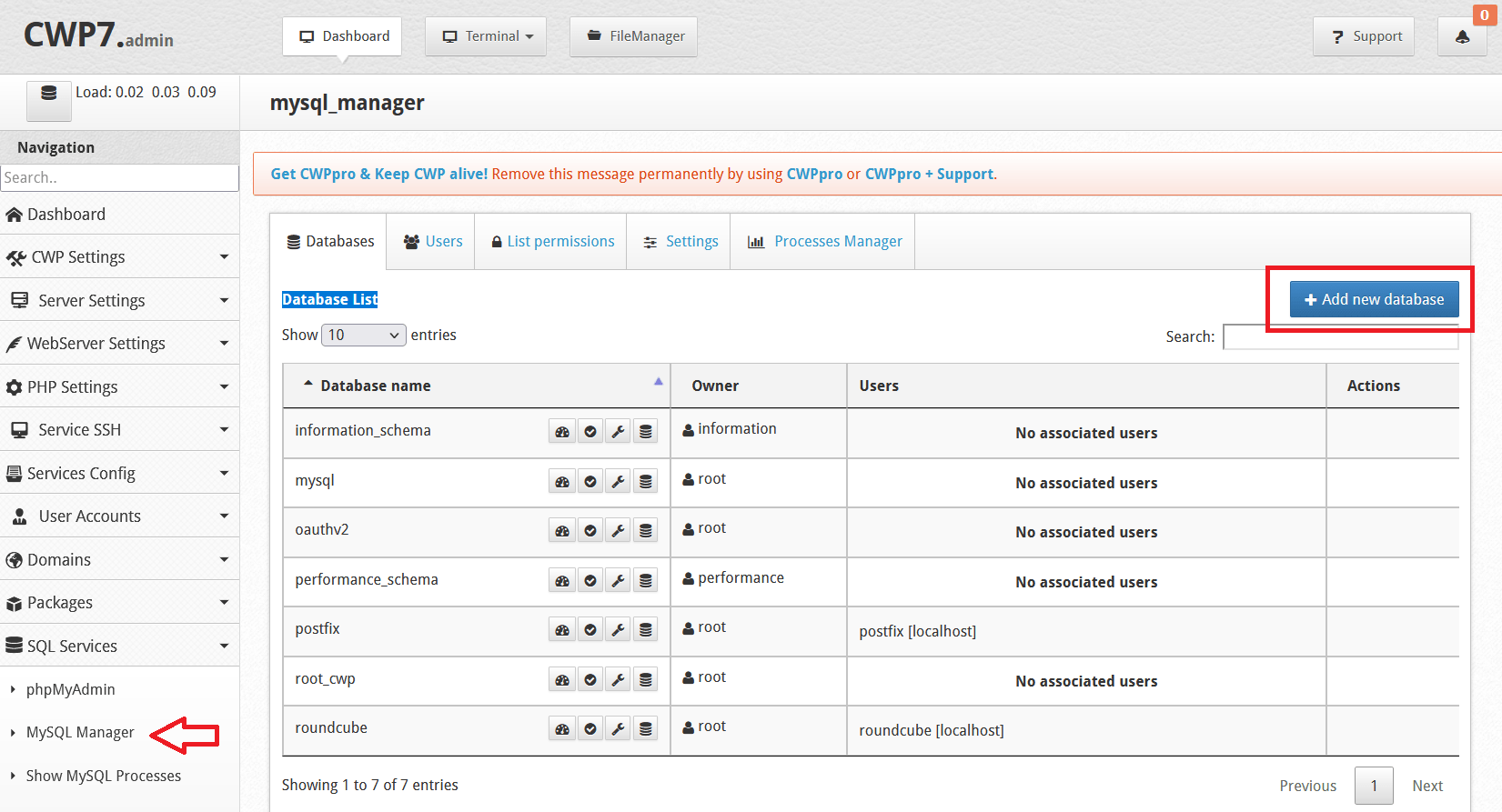
CentOS Web Panel has established itself as a comprehensive, feature-rich control panel specifically designed for CentOS and RHEL systems. CWP provides both administrative and user-level interfaces, making it suitable for hosting providers and individual server administrators alike.
The panel’s strength lies in its extensive feature set and deep integration with CentOS systems. CWP includes advanced security features, comprehensive backup solutions, and detailed system monitoring capabilities that provide insight into server performance and resource utilization.
One of CWP’s notable features is its dual-interface approach. The administrative interface provides complete control over server configuration and user management, while the user interface offers clients and website owners the tools they need to manage their individual accounts and websites. You can find detailed instructions in my Control Web Panel installation guide and learn about creating WordPress websites in CWP.
Pros:
- Comprehensive feature set with both admin and user interfaces
- Strong security features and monitoring capabilities
- Excellent integration with CentOS/RHEL systems
- Built-in backup and restore functionality
- Detailed system resource monitoring
- Good documentation and community support
- Free version available with substantial functionality
Cons:
- Limited to CentOS/RHEL distributions
- Interface can be overwhelming for beginners
- Some features require Pro version for full functionality
- Higher learning curve compared to simpler alternatives
Installation Difficulty: Moderate – requires CentOS/RHEL knowledge
Best Use Cases: CentOS/RHEL environments, hosting providers, users needing comprehensive feature
System Requirements: 2GB RAM minimum, CentOS/RHEL systems only
User Experience Rating: 7/10 for functionality, 6/10 for ease of use
EasyPanel
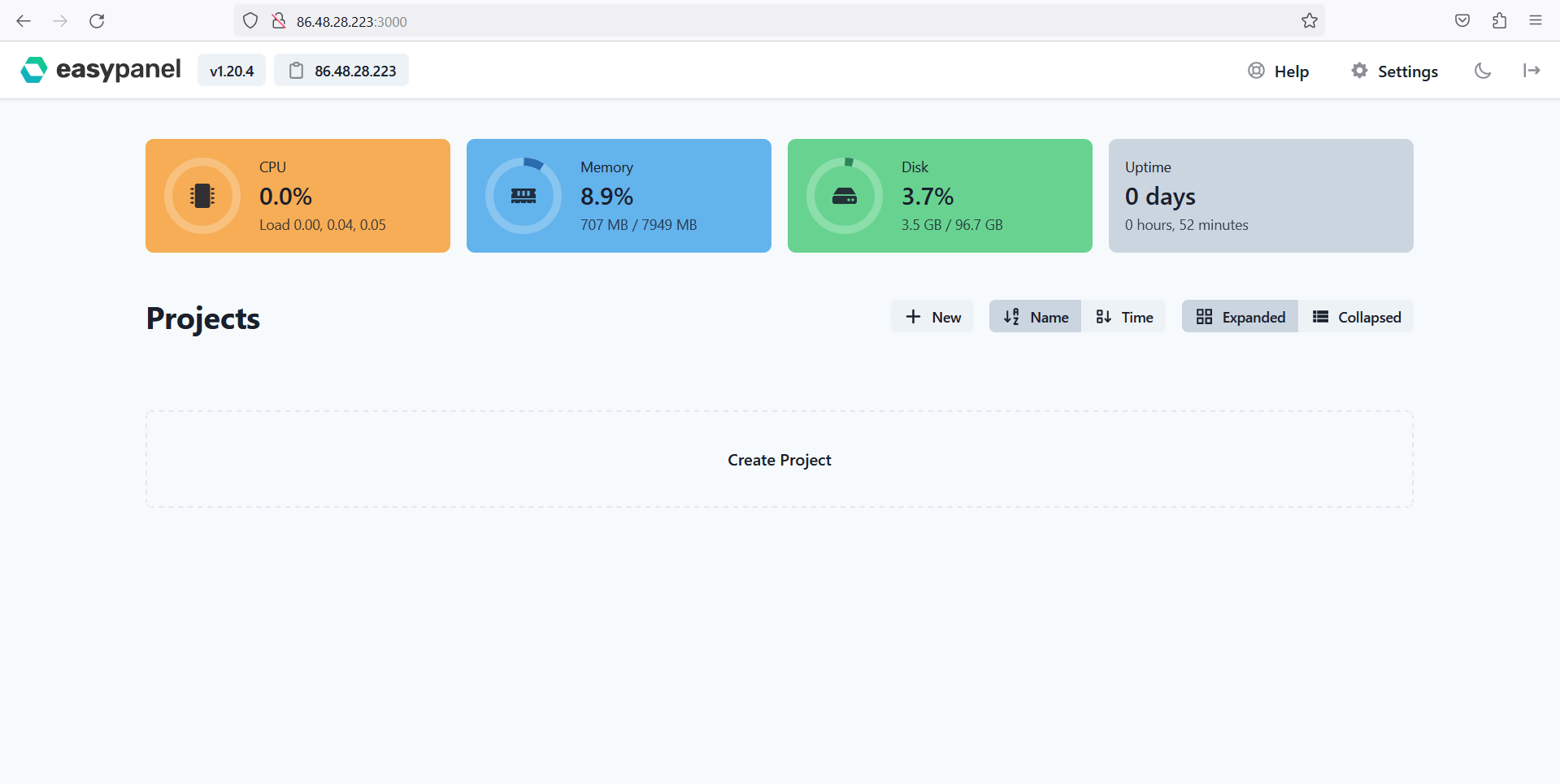
EasyPanel lives up to its name by providing a straightforward, accessible approach to server management. Designed with simplicity as a core principle, EasyPanel makes server administration tasks approachable for users who may be intimidated by more complex control panels.
The panel focuses on providing essential hosting functionality through clean, intuitive interfaces. Website management, database administration, and email configuration are handled through streamlined workflows that minimize the possibility of errors while maximizing efficiency.
EasyPanel’s approach to user management makes it particularly suitable for scenarios where multiple users need access to server resources. The panel provides granular permission controls and user-specific interfaces that allow for effective resource sharing and management.
I’ve created an EasyPanel installation guide that provides complete setup instructions.
Pros:
- Very intuitive and user-friendly interface
- Streamlined workflows for common tasks
- Good user and permission management
- Lightweight and resource-efficient
- Simple installation and configuration
- Reasonable documentation and support
- Stable and reliable performance
Cons:
- Limited advanced features and customization options
- Basic email management capabilities
- Fewer third-party integrations
- Smaller community compared to established panels
Installation Difficulty: Easy – simple installation process
Best Use Cases: Beginners, simple hosting needs, multi-user environments
System Requirements: Minimal – works with 512MB RAM
User Experience Rating: 8/10 for simplicity, 6/10 for advanced features
YunoHost
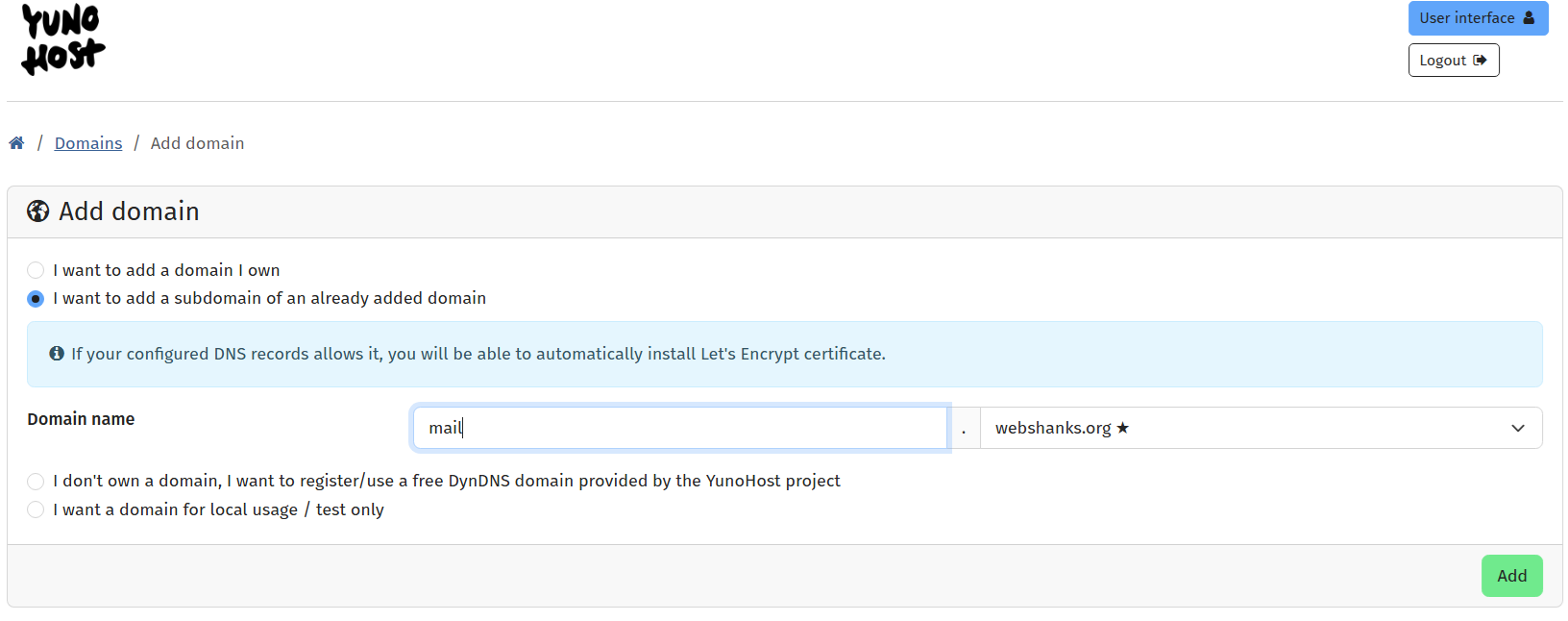
YunoHost takes a unique approach to server management by focusing on self-hosting and privacy. Rather than being a traditional web hosting control panel, YunoHost provides a platform for easily installing and managing self-hosted applications and services.
The philosophy behind YunoHost centers on democratizing self-hosting by making it accessible to users without extensive technical backgrounds. The panel provides one-click installation for dozens of popular applications, including email servers, cloud storage solutions, social media platforms, and productivity tools.
YunoHost’s strength lies in its application ecosystem and focus on privacy and security. The panel handles the complexity of application installation, configuration, and updates while providing users with complete control over their data and services.
This YunoHost installation guide shows how to get started, and you can also learn about building your own email server with YunoHost.
Pros:
- Excellent for self-hosting and privacy-focused deployments
- Large ecosystem of pre-configured applications
- Strong focus on security and privacy
- One-click application installation and management
- Good documentation and community support
- Regular updates and active development
- Built-in backup and restore functionality
Cons:
- Not suitable for traditional web hosting scenarios
- Limited customization of core functionality
- Requires understanding of self-hosting concepts
- Some applications may have limitations compared to standalone installations
Installation Difficulty: Moderate – requires some technical understanding
Best Use Cases: Self-hosting, privacy-focused deployments, personal cloud services
System Requirements: 1GB RAM minimum, supports various Linux distributions
User Experience Rating: 8/10 for self-hosting, 5/10 for traditional hosting
KeyHelp

KeyHelp provides a modern, efficient approach to web hosting management with a focus on performance and usability. The panel combines a clean, responsive interface with comprehensive functionality, making it suitable for both beginners and experienced administrators.
The panel’s strength lies in its balanced approach to feature inclusion and performance optimization. KeyHelp provides essential hosting functionality without overwhelming users with unnecessary complexity, while maintaining the performance characteristics needed for professional hosting environments.
KeyHelp’s approach to security is noteworthy, implementing security best practices by default and providing tools for ongoing security management. The panel includes automatic security updates, intrusion detection, and comprehensive logging capabilities.
Pros:
- Modern, responsive interface design
- Good balance of features and performance
- Strong security focus with built-in protections
- Efficient resource utilization
- Regular updates and active development
- Comprehensive documentation
- Good email management capabilities
Cons:
- Smaller community compared to established panels
- Limited third-party plugins and extensions
- Some advanced features require technical knowledge
- Fewer customization options than some alternatives
Installation Difficulty: Easy to moderate – well-documented process
Best Use Cases: Modern web hosting, performance-focused environments, security-conscious deployments
System Requirements: 1GB RAM recommended, supports major Linux distributions
User Experience Rating: 8/10 for modern interface, 7/10 for feature completeness
FastPanel

FastPanel emphasizes speed and efficiency in both interface design and server performance. Built with modern web technologies, FastPanel provides a responsive, fast-loading interface that makes server management tasks quick and efficient.
The panel’s architecture is optimized for performance, with particular attention paid to reducing page load times and improving responsiveness. This focus on speed extends to the server management capabilities, with optimized configurations and performance monitoring tools built into the panel.
FastPanel’s approach to application management is streamlined and efficient. The panel provides one-click installations for popular applications while maintaining the flexibility needed for custom deployments and configurations.
Be sure to check my FastPanel installation guide, which covers the complete setup process.
Pros:
- Fast, responsive interface design
- Performance-optimized server configurations
- One-click application installations
- Good monitoring and analytics capabilities
- Regular updates and improvements
- Efficient resource utilization
- Clean, modern user interface
Cons:
- Relatively new with smaller community
- Limited advanced customization options
- Documentation could be more comprehensive
- Fewer third-party integrations available
Installation Difficulty: Easy – automated installation available
Best Use Cases: Performance-focused hosting, modern web applications, speed-critical environments
System Requirements: 1GB RAM recommended, supports major Linux distributions
User Experience Rating: 8/10 for speed and interface, 7/10 for feature maturity
1Panel
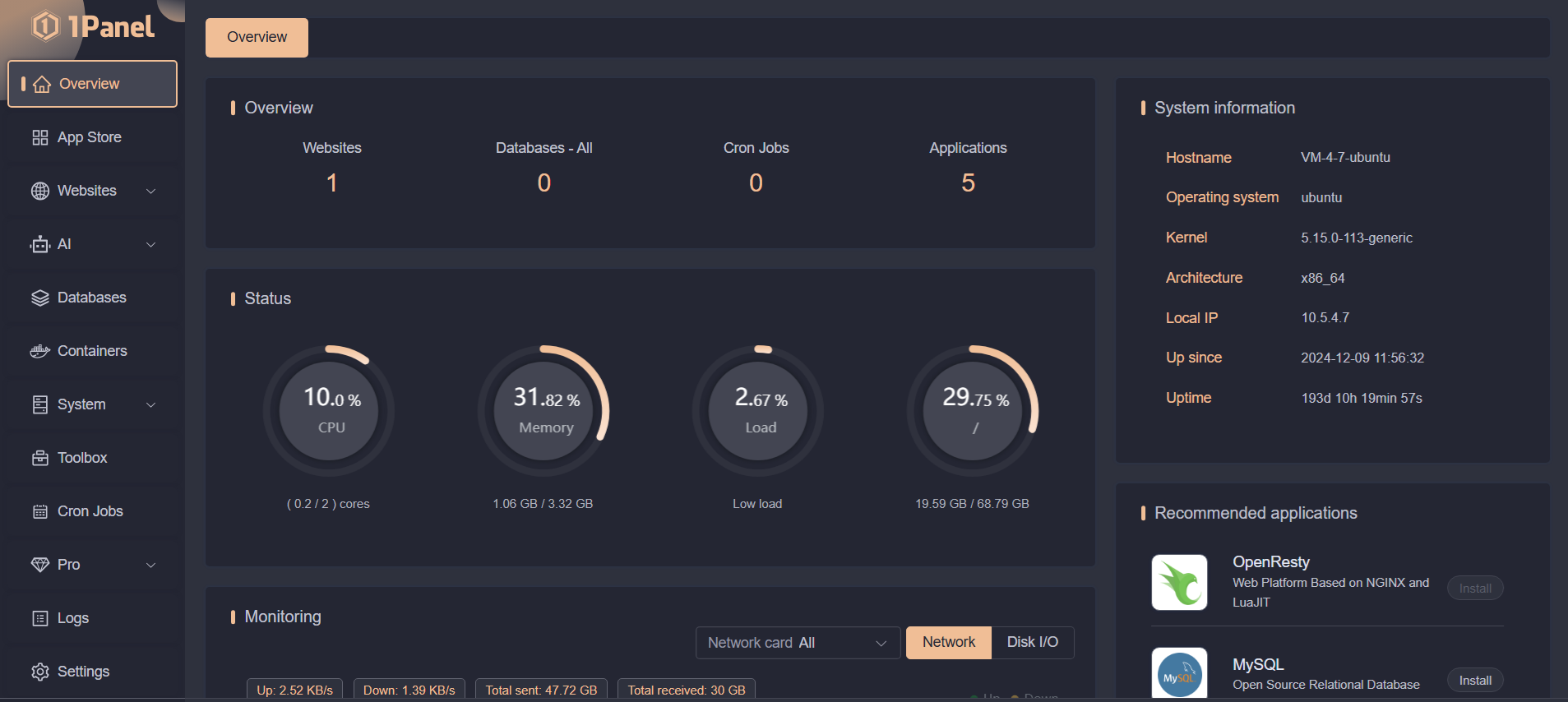
1Panel represents a modern, container-based approach to server management, leveraging Docker technology to provide secure, isolated environments for applications and services. The panel combines traditional hosting control features with modern deployment and management capabilities.
The panel’s strength lies in its integration of container technology with traditional hosting needs. 1Panel makes it easy to deploy and manage containerized applications while providing the familiar hosting control features that users expect from traditional panels.
1Panel’s approach to security is enhanced by its container-based architecture, providing natural isolation between applications and services. This architecture also simplifies backup and migration processes, as entire applications can be easily moved between environments.
I’ve created a tutorial on installing 1Panel and building a WordPress site in it. Be sure to check that one out.
Pros:
- Modern container-based architecture
- Strong security through application isolation
- Easy application deployment and management
- Good backup and migration capabilities
- Active development and regular updates
- Modern, intuitive interface
- Efficient resource utilization
Cons:
- Requires understanding of container concepts
- Limited traditional shared hosting features
- Smaller community and ecosystem
- Learning curve for users new to containers
Installation Difficulty: Moderate – requires Docker knowledge
Best Use Cases: Modern application deployment, container-based hosting, development environments
System Requirements: Docker support required, 2GB RAM recommended
User Experience Rating: 8/10 for modern deployments, 6/10 for traditional hosting
For beginners seeking the best free control panel for VPS with minimal complexity, HestiaCP and aaPanel stand out for their user-friendly approaches. Advanced users and hosting providers may prefer the comprehensive feature sets of Webmin/Virtualmin or ISPConfig, while performance-focused deployments might benefit from CloudPanel or CyberPanel’s optimized architectures.
How to Choose the Right Control Panel
Consider These Factors:
- Technical Skill: Are you a beginner or seasoned admin?
- Server Resources: Some panels are lightweight, others are resource-hungry.
- Specific Needs: Need email? Docker? Node.js hosting?
- Security Priorities: How easy is it to set up SSL and firewalls?
Tips for:
Beginners:
- Start with aaPanel, HestiaCP, CloudPanel, CyberPanel, or EasyPanel
Advanced Users:
- Look into Coolify, ISPConfig, or Webmin/Virtualmin
Installation and Setup Tips
Preparation Steps:
- Choose a VPS with open port 25 (email support)
- Use fresh OS (Debian/Ubuntu/CentOS)
- Set up SSH access (see my guide on connecting via SSH)
- Set up SSH keys (security)
Common Challenges:
- Port conflicts with existing services
- DNS misconfigurations
- Email deliverability issues
Security Best Practices:
- Change default ports
- Enable UFW or CSF firewalls
- Use Let’s Encrypt SSL
Post-Installation:
- Create regular backups
- Monitor server logs
- Update packages regularly
Conclusion
Choosing the best free control panel for VPS depends on your experience, goals, and the type of apps or websites you want to host.
Now that you’ve seen the best options, why not try one today?
